
How to Prepare for a Successful Live Phishing Test: Ensuring Email Delivery and Avoiding Spam Filters
Live phishing tests assess how well employees can spot phishing attempts. However, if test emails are blocked by spam filters, the test won't be effective. Here's how to whitelist email domains to ensure your phishing test runs smoothly.
What Is a Live Phishing Test?
A phishing test simulates real phishing attacks to see how employees respond. It's a great way to identify weaknesses and improve security awareness.
Why You Need to Whitelist Domains for Phishing Tests
Spam filters may block your phishing test emails, skewing your results. Whitelisting the test domains ensures emails reach employees' inboxes so you can get accurate insights.
How to Whitelist Domains for a Phishing Test
Step 1: Identify Test Domains
Get the email addresses your phishing test provider will use.
Step 2: Add Domains to the Allow List
Work with your IT team to add the addresses to your email system's allow list.
Step 3: Update Email Filters
Follow the directions in the section below to setup your email filters.
Setting up Allowlist for Google Workspace / Gmail Phishing Exercise
For Gmail (or Google Workspace) you can follow the steps found on their site here (Microsoft's instructions) or follow the steps below.
NOTE: If you have previously setup a list – Just one step is needed!
If you already have created a list of allowed domains from past exercises you can just add the address to your allowed list by going here: https://admin.google.com/ac/apps/gmail/manageaddresslist
Just add the new email address or domain and you should be all set!
Step 1
Go to https://admin.google.com and login as admin.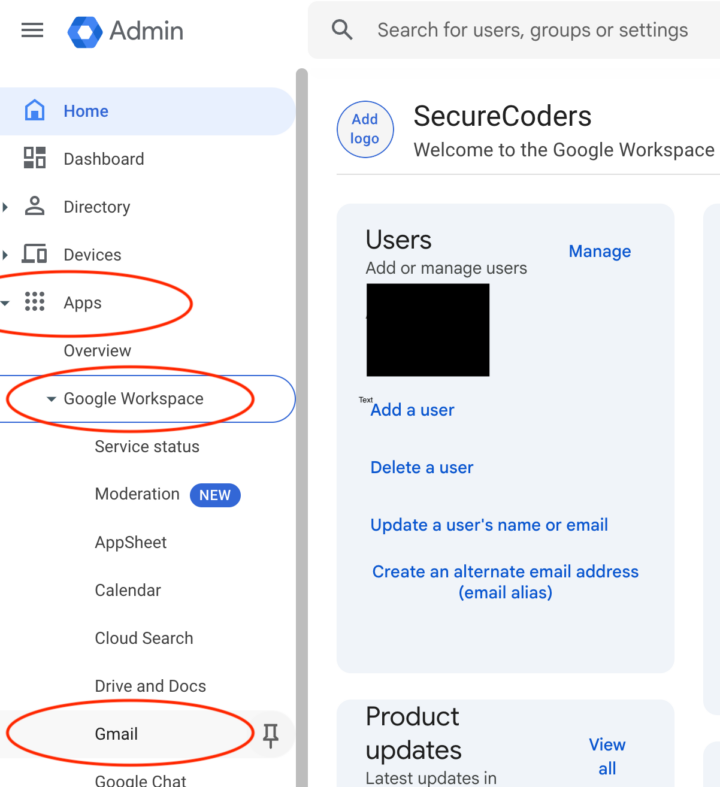
Step 2
Scroll down through the settings until you find "Spam, Phishing, and Malware"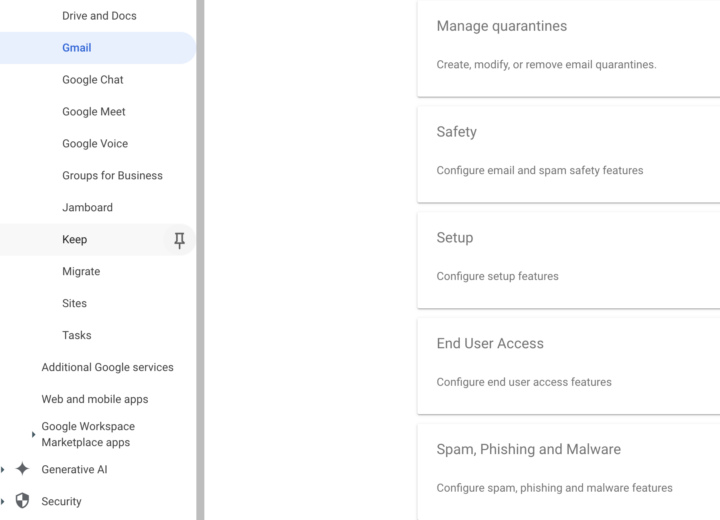
Step 3
Scroll down to "Spam" and click configure.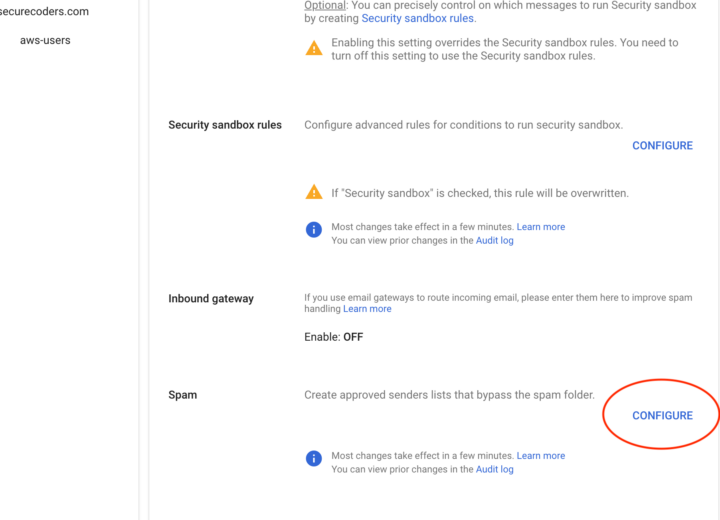
Step 4
Enter a name for the Phishing exercise and click "create or edit list" under "Bypass spam filters…"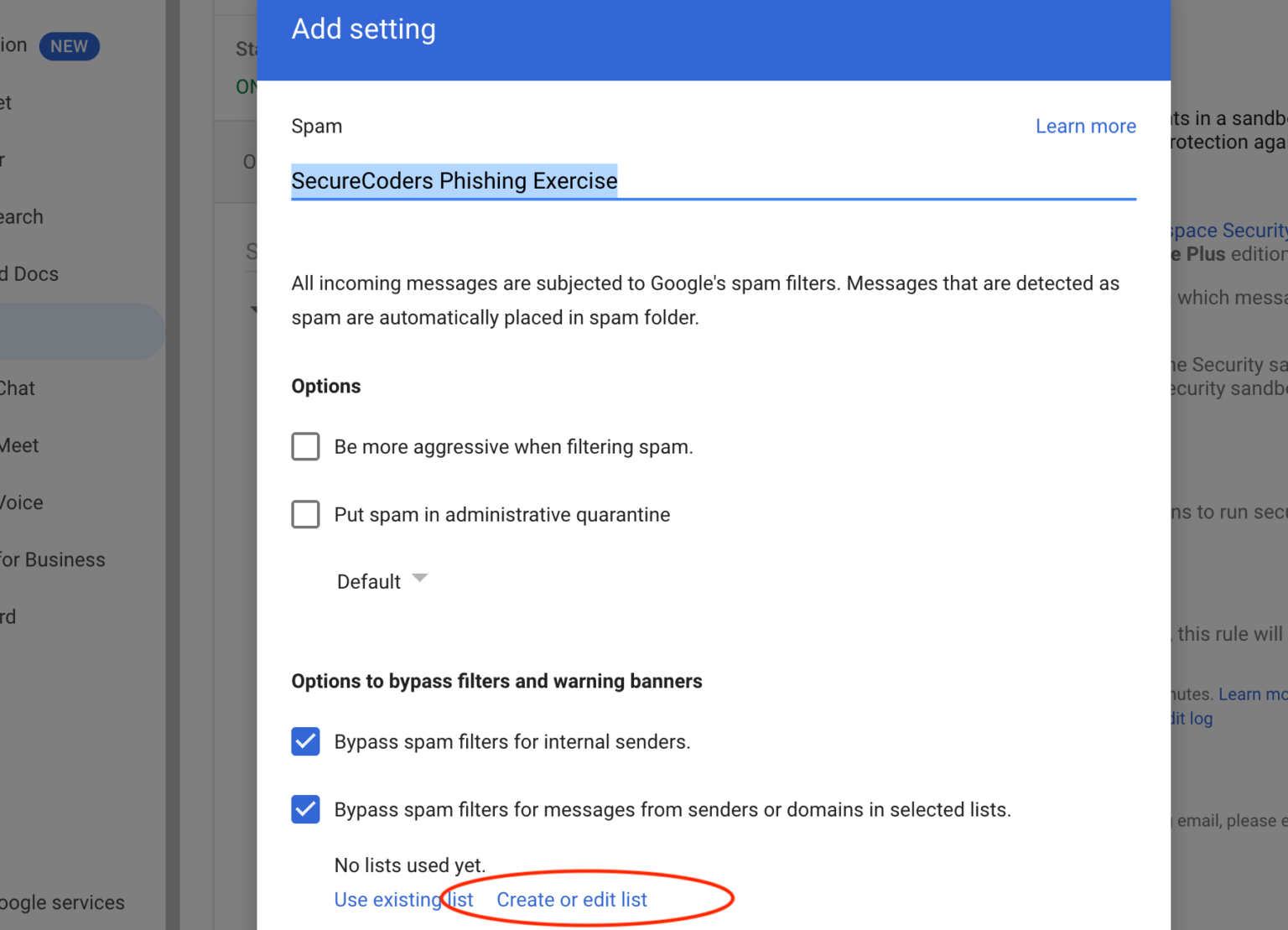
Step 5
Select "Add Address List"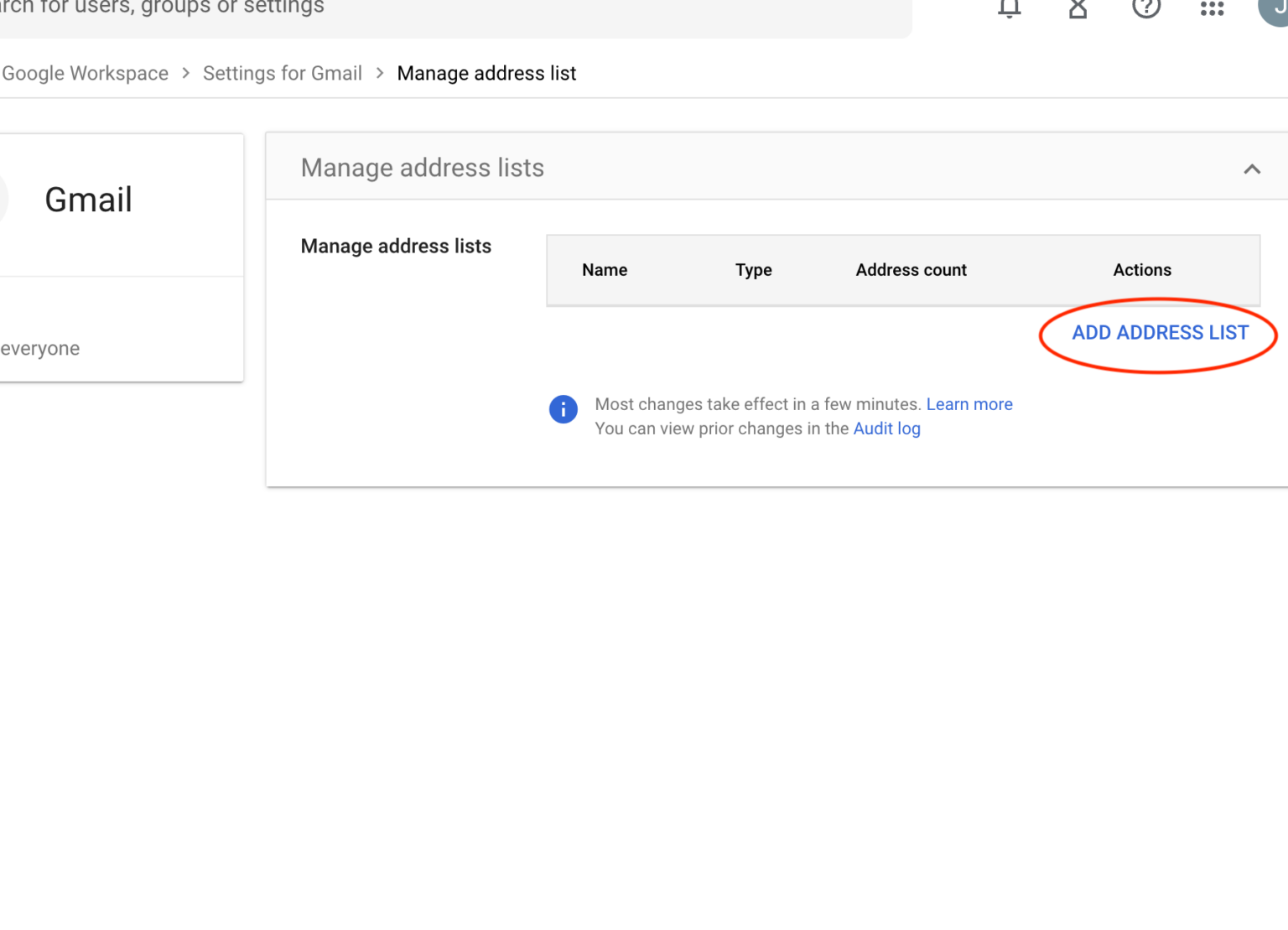
Step 6
Enter the email address that will be used for your phishing exercise and uncheck "Authentication required". Then click "Save".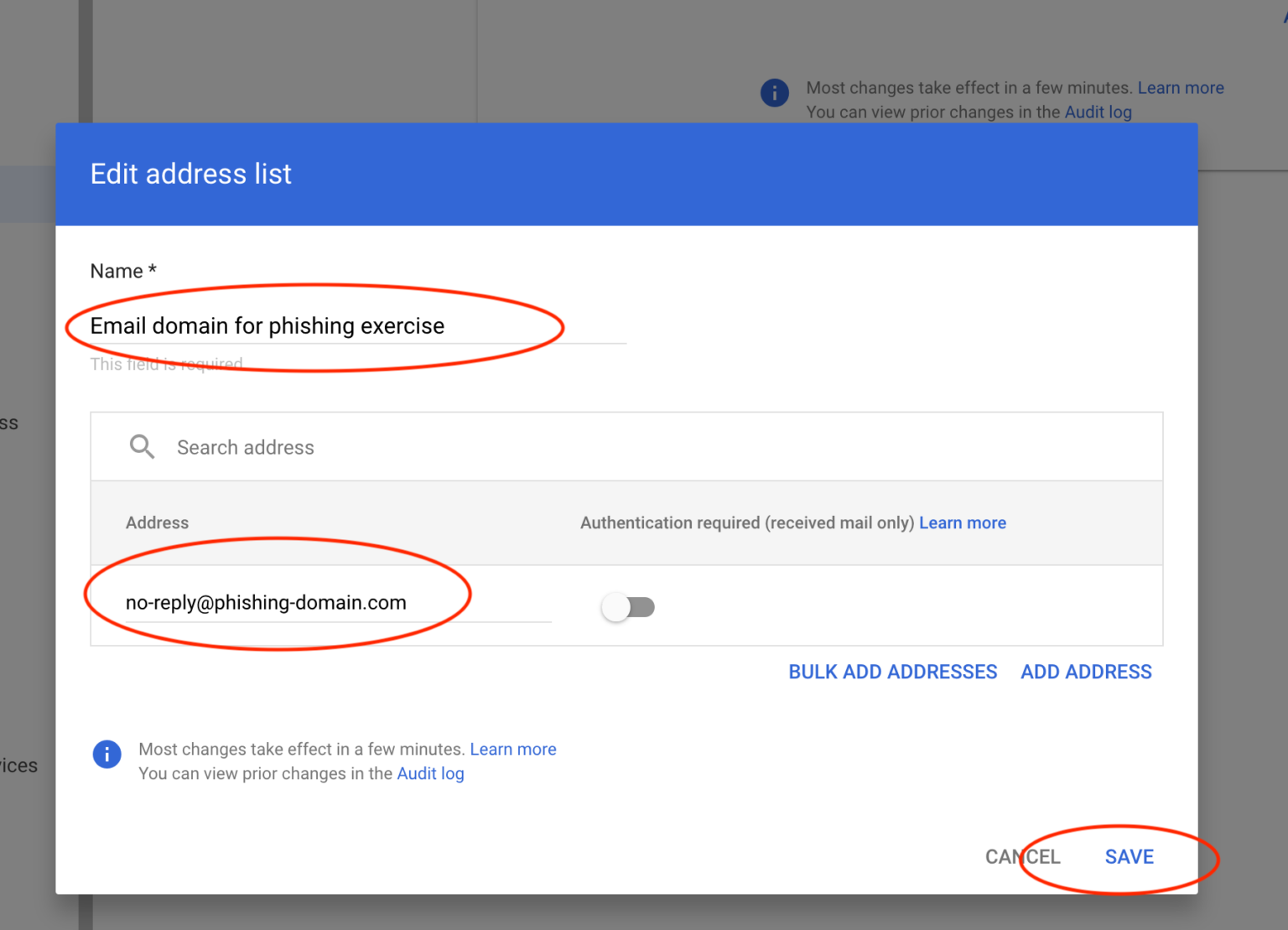
Step 7
Close the tab that was opened to create the list and go back to the Spam setting window again. Click use existing list for the middle 2 "bypass spam" options, and select the list you created, then click save.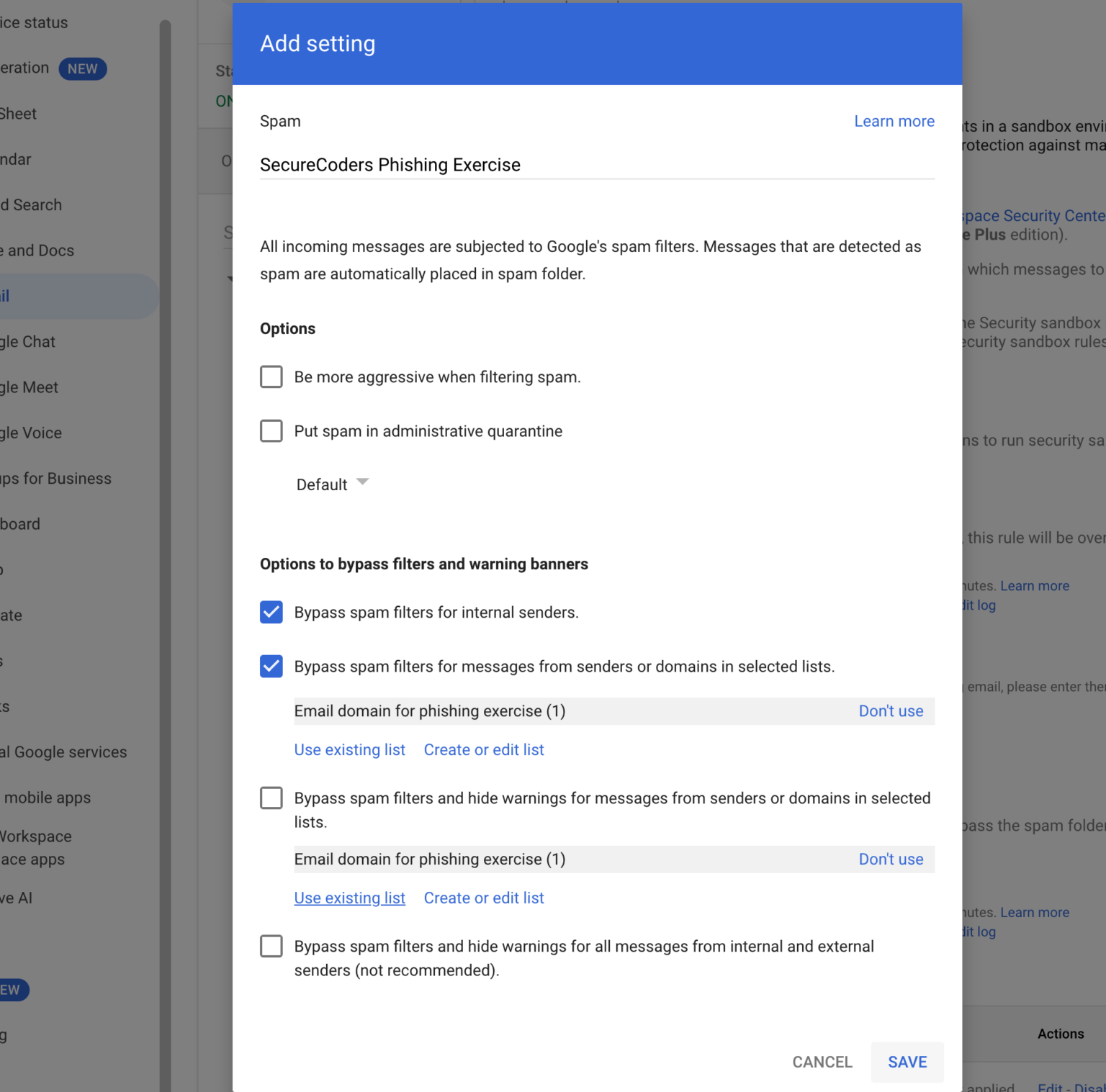
Setting up Allowlist for Office365 Phishing Exercise
Setting up Office365 can be a bit more complicated so we generally recommend you follow the instructions they provide in this forum: https://answers.microsoft.com/en-us/msoffice/forum/all/bypass-spam-filtering/9ca98da3-4b46-4c35-9e02-9cf1a0f417cb
Best Practices for Phishing Test Success
- Monitor Deliverability: Use email logs or deliverability tools to confirm emails are reaching inboxes.
- Send Test Emails: Before the full test, send a small batch to ensure whitelisting is working.
- Post-Test Education: Educate employees on phishing tactics after the test to reinforce lessons learned.
Common Issues (And How to Fix Them)
- Aggressive Spam Filters: Adjust your spam filter settings if emails are still blocked.
- Incorrect Domains: Double-check domain formats, especially for subdomains.
- Reported Test Emails: Instruct employees to report real phishing emails separately from test ones.
Conclusion
Whitelisting domains for your phishing test ensures emails reach employees, allowing you to gather accurate data. Want help with your phishing test? Contact SecureCoders for expert support.
Need Help with Your Phishing Test? Contact SecureCoders Today
Ready to run a phishing test? Learn more about our services or get in touch to start improving your security.